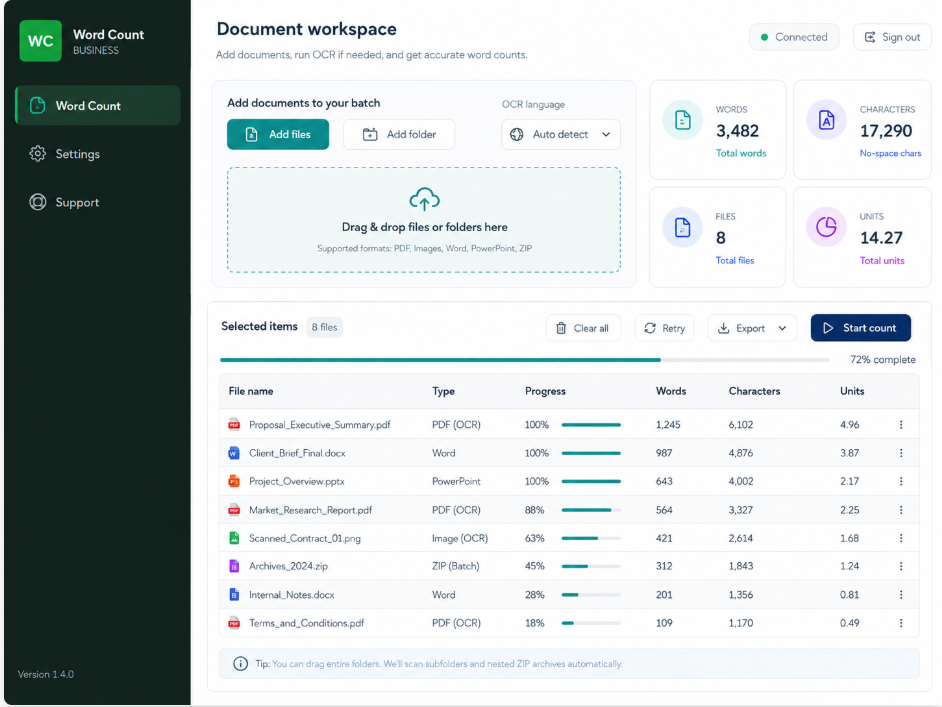
The workflow problem
Why file-by-file counting breaks down
A project rarely arrives as one clean Word document. It may include a PDF brief, spreadsheets, presentation slides, reference images, and a ZIP archive with more folders inside. Opening each item separately adds time before the actual work begins.
The bigger risk is not only speed. A hidden attachment, unsupported scan, or duplicate manual entry can change the quotation. A batch workflow should preserve the result for every file as well as the overall total.
A repeatable process
Four steps from incoming folder to a clear total
Keep the original project structure intact, process the complete batch, and review exceptions before using the total in a quotation or internal record.
1. Add the batch
Choose files, add a complete folder, or include ZIP archives instead of opening documents individually.
2. Choose the settings
Use the appropriate counting options and enable OCR only for scanned PDFs or images that need it.
3. Review exceptions
Check per-file status and inspect any item marked for attention before accepting the batch total.
4. Export the result
Create a structured Excel report for checking, quotation preparation, or project records.
Mixed inputs
Keep common document types in the same run
Word Count Tool supports PDF, Word, Excel, PowerPoint, text, common image formats, and ZIP archives, including nested archives. The aim is to reduce the number of separate tools needed before a project can be priced or assigned.
A supported file type does not make every source equally reliable. Scanned documents still depend on image quality and OCR, so the tool keeps those results visible for review rather than treating every extracted number as guaranteed.
Review before use
Use the total only after checking the file-level result
A useful batch count answers two questions: what is the total, and which files produced it? The workspace shows words, characters without spaces, calculated units, and per-file results so the team can identify gaps before sending a quotation.
Document content is processed locally on the Windows computer during normal counting. The account service manages sign-in, expiry, device identity, and session status; it does not receive the documents being counted.